TTech OneStop · Safety and environment

Change Management

Every change to the process, the equipment, the control logic or PI/AF assessed, approved by the right roles and checked before startup.

The problem it solves

Changes slip into service before their review.

A temporary bypass stays in place for months, and a setpoint change goes live before anyone signs the pre-startup review.

The approvals are spread across emails, and nobody knows which change is waiting on whom.

  • Demo on ten simulated mines
  • English and French
  • Hosted in Canada
  • Your Microsoft sign-in
The changes in progress at a simulated mine, each one at its stage, with what needs attention now
Demo section, simulated data.
  • Reviews by roleThe required roles come from the type of change and its risk.
  • Pre-startup review12 standard items, signed by someone other than the owner.
  • Temporary changesAn expiry date, two extensions at most, flagged once expired.
  • Seen in PIA linked PI point shows a change in effect before its review.
What changes

What changes for your team.

  • The right reviewers, every time

    BeforeApprovals collected by email, a role forgotten.

    With OneStopThe required roles added from the type of change and its risk, each one signed with a comment.

  • Temporary stays temporary

    BeforeTemporary changes still in place long after their end.

    With OneStopAn expiry date on each one, two extensions at most, and the expired ones flagged until they are closed.

  • Nothing starts unchecked

    BeforeA change in service before its pre-startup review.

    With OneStopThe pre-startup review signed by someone other than the owner, and a linked PI point that shows a change in effect too early.

How it works

From your data to a decision, in a few steps.

  1. Request

    The originator describes the change: its type and kind, the site and area, why it is needed and when it should start.

  2. Assess the risk

    Each hazard on the 5 × 5 matrix before and after its controls; the AI can draft the risk lines and the impact summary.

  3. Review and approve

    The required roles review and sign; one rejection ends the change, a request for changes sends it back.

  4. Implement and check

    The tasks before startup, then the pre-startup safety review, signed by someone other than the owner.

  5. Close

    The tasks after startup done, a temporary change restored, and the change closed.

Inside the app

The screens your teams use.

Each screen below is from the Demo section of OneStop, on a simulated mine. Ask us for a visit to try them yourself.

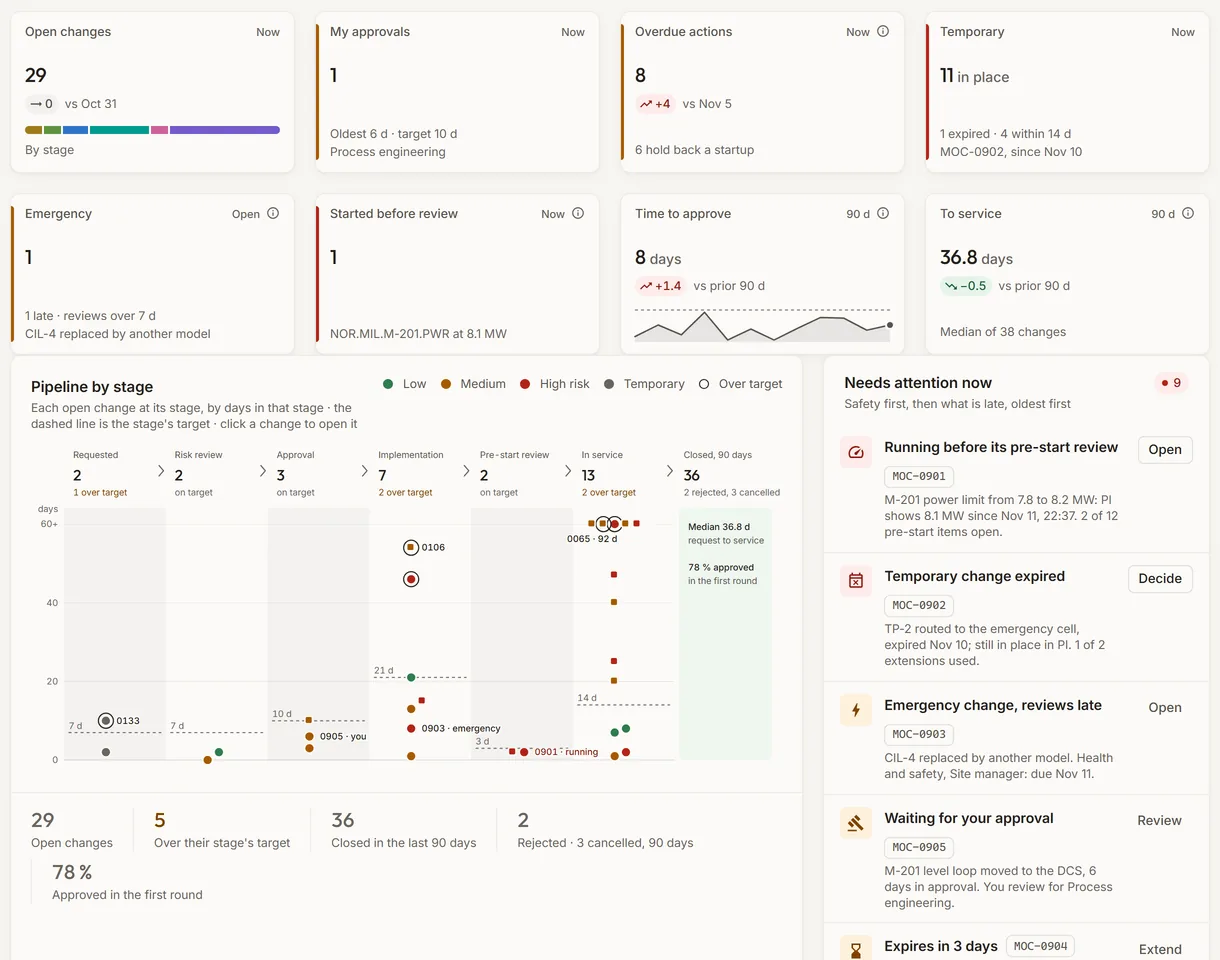
The pipeline of changes of a simulated mine, with what needs attention now
Demo section, simulated data.
01 · Changes in progress

Every open change at its stage.

Each change at its stage, from the request to service, by the days it has spent there against the stage’s target, beside what needs attention now: a change in use before its pre-start review, a temporary change past its expiry, late emergency reviews.

  • Eight tiles above: open changes, my approvals, overdue actions, temporary, emergency, started before review, time to approve, request to service.
  • The stage targets are set per site by your administrators.
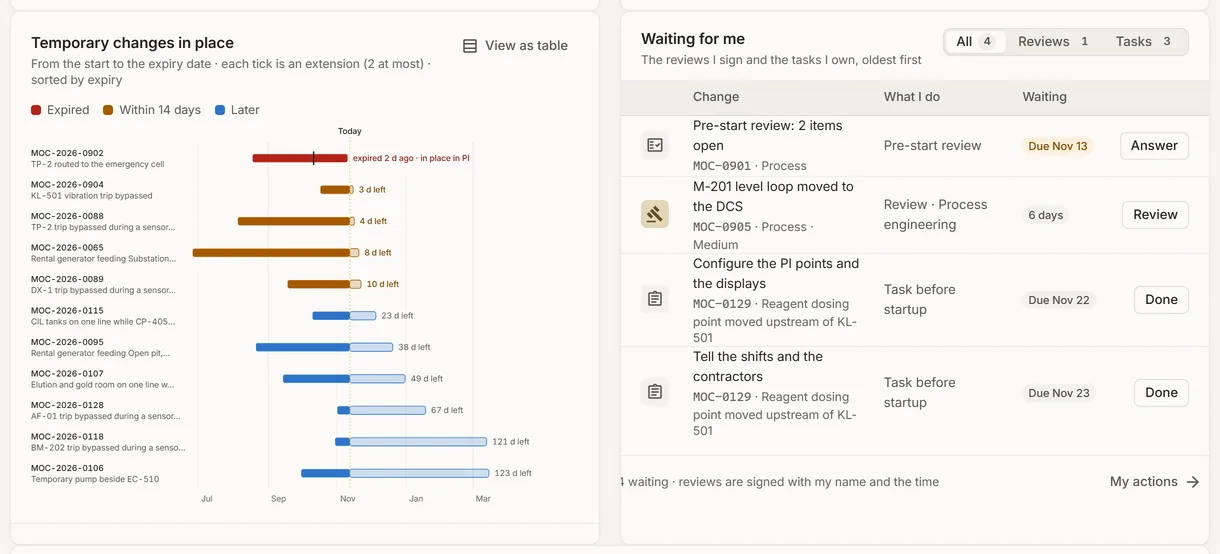
The temporary changes of a simulated mine, beside the reviews and tasks waiting for me
Demo section, simulated data.
02 · Temporary changes

Temporary changes, from their start to their expiry.

Each temporary change as a line to its expiry date, amber within 14 days, red once expired, with a tick at each extension, beside the reviews and tasks waiting for me.

  • Marked in place in PI when its linked PI point says so.
  • A task marked done in one click.
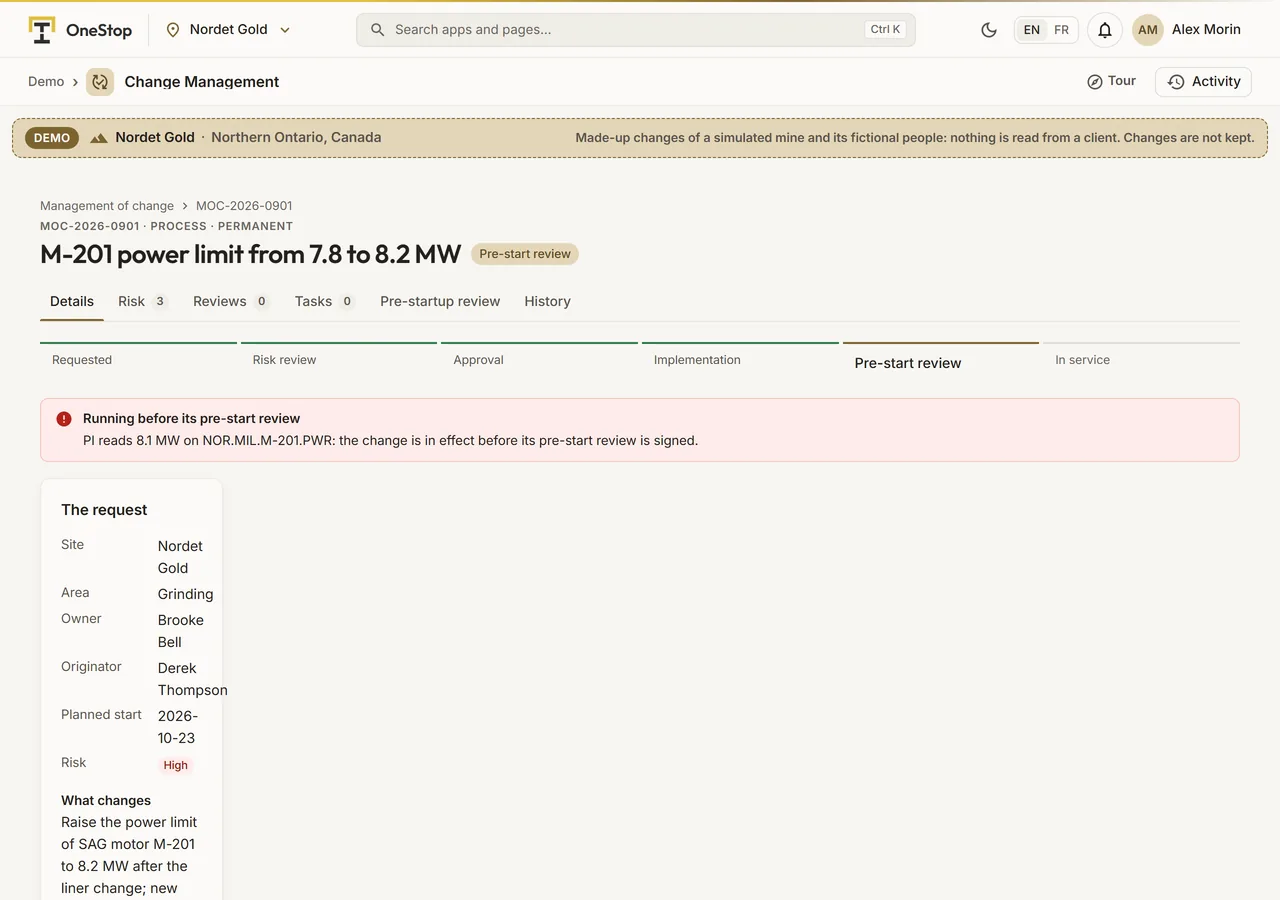
A simulated change in progress with its stages, its impact summary and its plant status from PI
Demo section, simulated data.
03 · One change

One change, from request to service.

The six stages above the change, the request, the impact summary drafted by the AI and confirmed by a person, and the plant status read from the PI point linked to the change.

  • The risks, reviews, tasks, pre-startup review and history in their own tabs.
  • Comments from the change page or a phone.
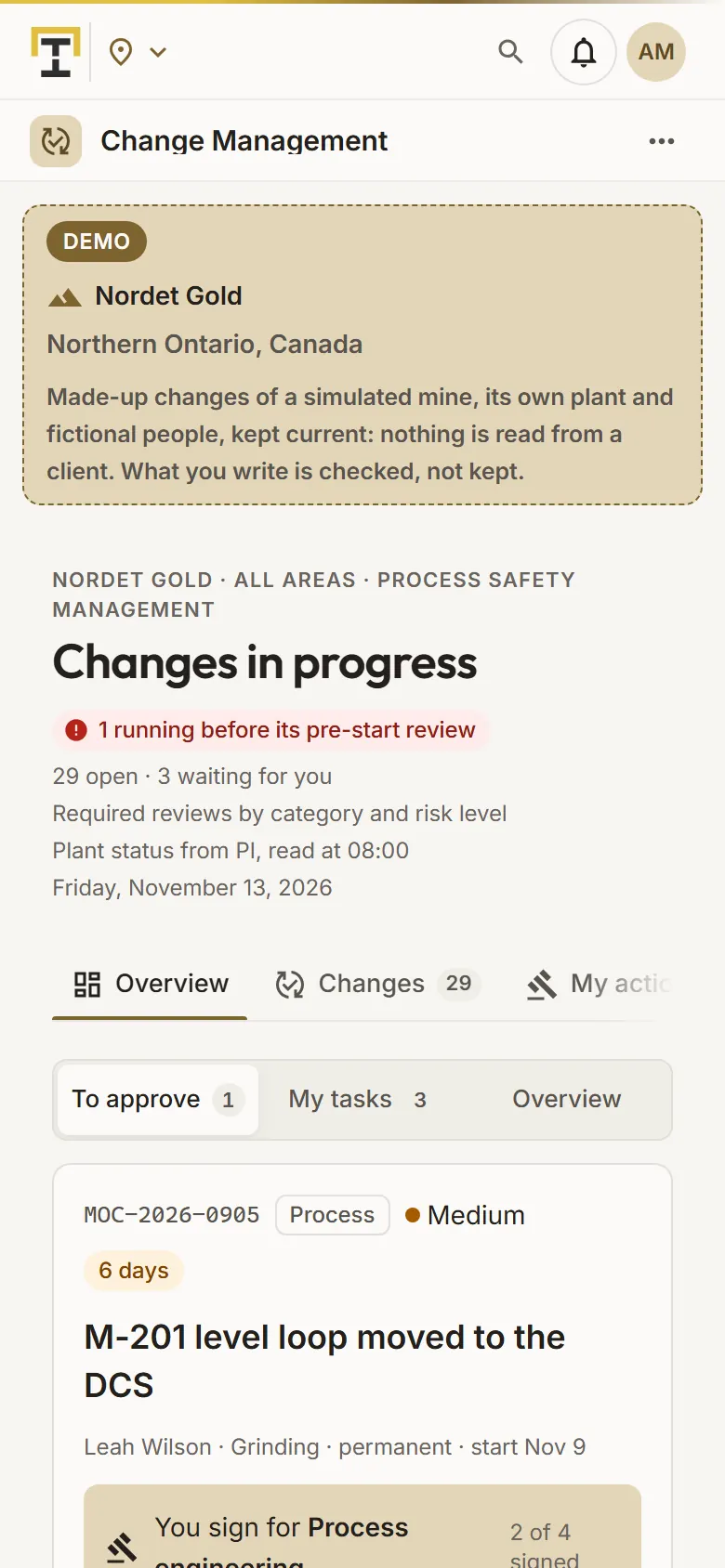
A change of a simulated mine waiting for approval, on a phone
Demo section, simulated data.
04 · On a phone

Approve a change from a phone.

On a phone the app opens on what waits for me: the oldest review as a card with the change, my role, its risk lines and its impact, then Approve or Request changes.

  • My tasks below it, the overview one tap away.
What it does

Everything it does.

  • Six types, three kinds

    Process, equipment, control logic, PI/AF configuration, procedure and organisation; permanent, temporary or emergency.

  • Risk assessment

    Hazards and consequences on the 5 × 5 matrix, before and after their controls; the change’s level is its worst residual risk. The AI drafts risk lines, each one accepted by a person.

  • Reviews by role

    Operations and the area manager always; process engineering, health and safety, maintenance, control systems, training or human resources by type; health and safety and the site manager for a high or extreme risk. The originator never approves their own change.

  • Pre-startup safety review

    12 standard items, from the design to the PI points and the isolations, plus your own, answered yes, no or not applicable and signed by someone other than the owner.

  • Temporary and emergency changes

    A temporary change has an expiry date, 180 days at most, and two extensions at most; an emergency change starts at once and its reviews are flagged after 7 days.

  • Overview and export

    The pipeline, the time in each stage, a heat map by type and area, the changes opened and closed, and the changes table exported to CSV.

Standards and integrations

Built on the standards and systems you already use.

Standards

  • OSHA 1910.119Process safety management: the standard items of the pre-startup safety review are modelled on it.

Works with

  • PI SystemThe recent values of a PI point linked to a change, as your PI System sends them to Filon; read only.
Who uses it

Made for the people who run the site.

  • Process and control engineersRequest changes and follow them to service, with their risks and tasks.
  • Reviewers of each disciplineSign the changes waiting for their role, from a laptop or a phone.
  • Area and site managersSee every change in progress, the late ones and the temporary ones still in place.
  • Company administratorsSet the stage targets of each site.
Questions

What clients ask us.

Who approves a change?

The roles its type and risk require, and any reviewer you add. The originator never approves their own change, and each person signs once per round.

What about an emergency change?

It may start at once; its reviews stay due and are flagged after 7 days. A rejection ends it as rejected.

Does it read our PI System?

Only the PI point you link to a change, through your Filon, to show whether the change is in effect. Nothing is written.

Can we try it?

Yes. The Demo section has changes in every stage on ten simulated mines, each with its own areas and fictional people, and new ones as the days pass.

Your data

Your data in this app.

What it reads, what it writes and who sees it. The whole picture: Security and trust.

  • Encrypted with your key

    Titles, descriptions, risks, comments and the AI’s brief are encrypted with your company’s own key; a change is cancelled, never deleted.

  • PI read only

    Only a PI point linked to a change is read, and nothing is written to Filon.

  • Our staff read only

    Our staff see your changes only with your access code, never sign them and never ask the AI about them.

The OneStop way

Every app follows the same principles.

What is true of this app is true of every app of TTech OneStop: your data, your people and your language come first.

  • Your data stays yours

    The apps read your data through your own AVEVA CONNECT and write back only their own results, in their own streams. Your existing data is never changed.

  • Nothing to install at the site

    OneStop runs in the browser. Your administrator sets up one connection to your AVEVA CONNECT, once, and every app uses it.

  • Your Microsoft sign-in

    Your people sign in with their Microsoft work account. Your own admins decide who uses which app.

  • Explained, never a black box

    Every score, alert and AI answer shows its reason and where its numbers come from, in plain words.

  • English and French

    Every screen, every message and every report, in the language each person chooses.

  • By the piece

    Subscribe to the apps you need and add others later. Try each one first in the demo, on ten simulated mines.

See it on your own data.

Book a demo on our simulated mines, or tell us how you want to use it on yours.