TTech OneStop · Shift and field

Operator Logbook

One log for each control room, open items carried from shift to shift until someone closes them, and a handover the incoming shift reads and signs.

The problem it solves

What happened on night shift lives in a notebook.

Entries are written in a binder, an email or a spreadsheet, each control room its own way, and open issues get lost between two shifts.

At the handover, the incoming crew hears a summary, signs nothing, and the same problem is found again two shifts later.

  • Demo on ten simulated mines
  • English and French
  • Hosted in Canada
  • Your Microsoft sign-in
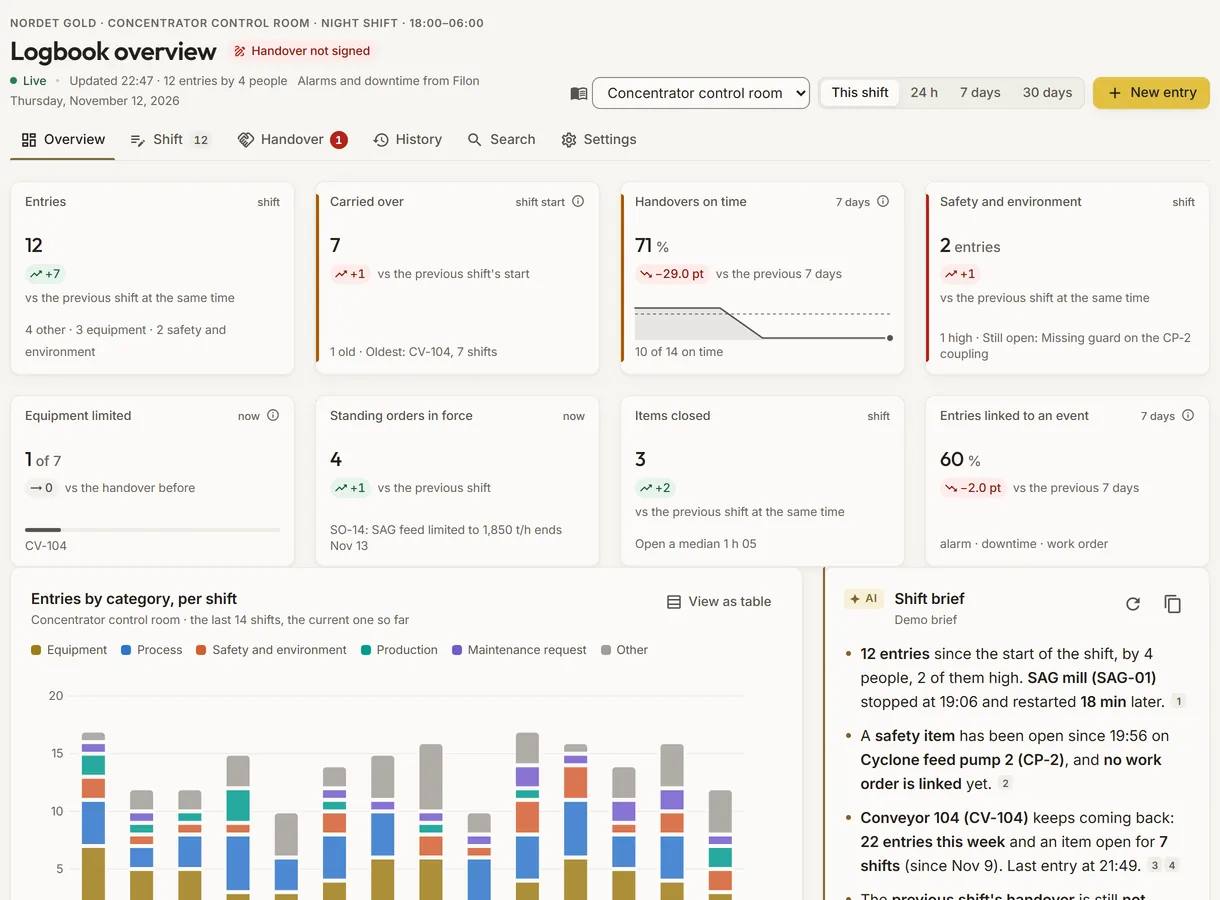
The logbook overview of a simulated plant control room: the figures of the shift, the entries by category per shift and the shift brief
Demo section, simulated data.
  • Shift entriesTen categories, three levels, equipment and PI tags, the time of the event.
  • Carried overOpen items follow from shift to shift until someone closes them.
  • Read and signedThe incoming shift signs the handover; on time or late, it is counted.
  • AI draftThe handover drafted from the shift’s entries, alarms and downtime; a person confirms.
What changes

What changes for your team.

  • One log per control room

    BeforeNotebooks, emails and spreadsheets, each area its own way.

    With OneStopEvery entry of every logbook in one place, by category, equipment and shift, easy to find.

  • Open items that are not lost

    BeforeA problem mentioned once, then forgotten.

    With OneStopOpen items carried into each shift and each handover until someone closes them.

  • A handover that is signed

    BeforeA spoken summary at the shift change.

    With OneStopA written handover the incoming shift reads and signs, with the time it was signed.

How it works

From your data to a decision, in a few steps.

  1. A logbook per area

    Your administrators add the logbooks of the site, a control room or a dispatch, each tied to a place of the site.

  2. Entries during the shift

    Operators write what happened, when and on which equipment, with a category, an importance and up to three photos.

  3. The handover at shift end

    The outgoing shift writes the handover, or starts from the AI’s draft, then submits it.

  4. Read and signed

    Each person of the incoming shift reads it and signs; the open items and standing orders come with it.

Inside the app

The screens your teams use.

Each screen below is from the Demo section of OneStop, on a simulated mine. Ask us for a visit to try them yourself.

The logbook overview of a simulated plant control room: eight figures, the entries by category per shift and the shift brief
Demo section, simulated data.
01 · Overview

The state of the shift, in eight figures.

Entries, open items carried over, handovers signed on time, safety and environment entries, equipment limited, standing orders in force, items closed and entries linked to an event.

  • The entries by category over the last 14 shifts.
  • This shift, 24 hours, 7 or 30 days, logbook by logbook.
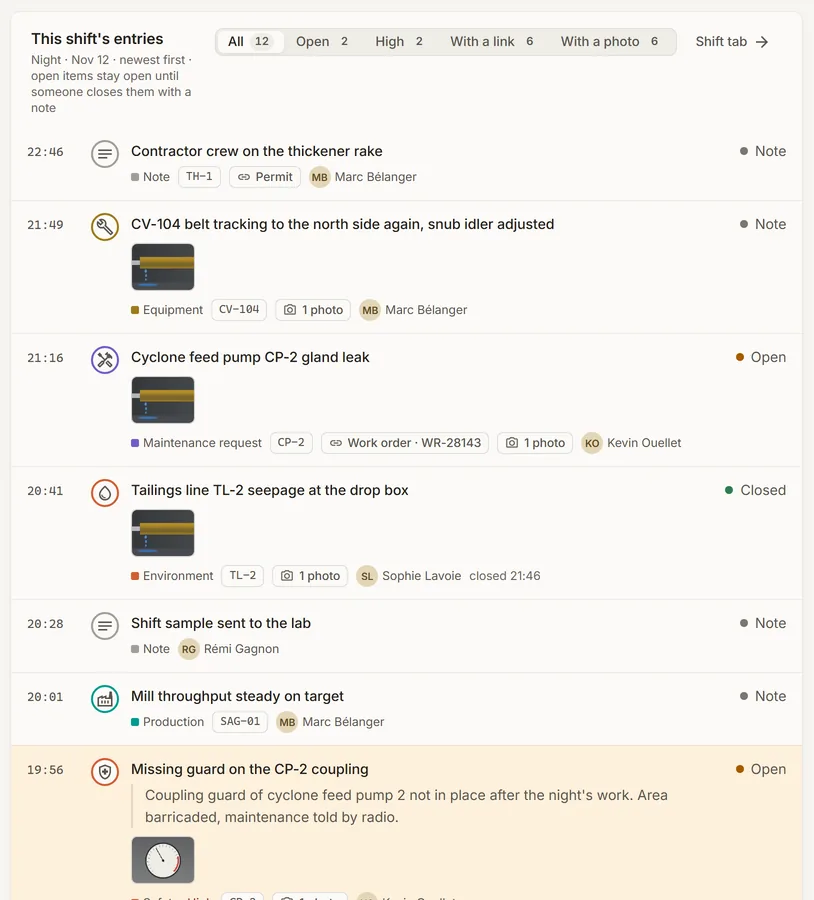
The entries of a shift in the logbook of a simulated plant control room
Demo section, simulated data.
02 · Entries

What happened, when and on which equipment.

The shift’s entries, newest first, each with its category, its importance, its equipment, its photos and whether it is still open.

  • Show only the open ones, the high ones, those with a link or those with a photo.
  • Every correction keeps the earlier text.
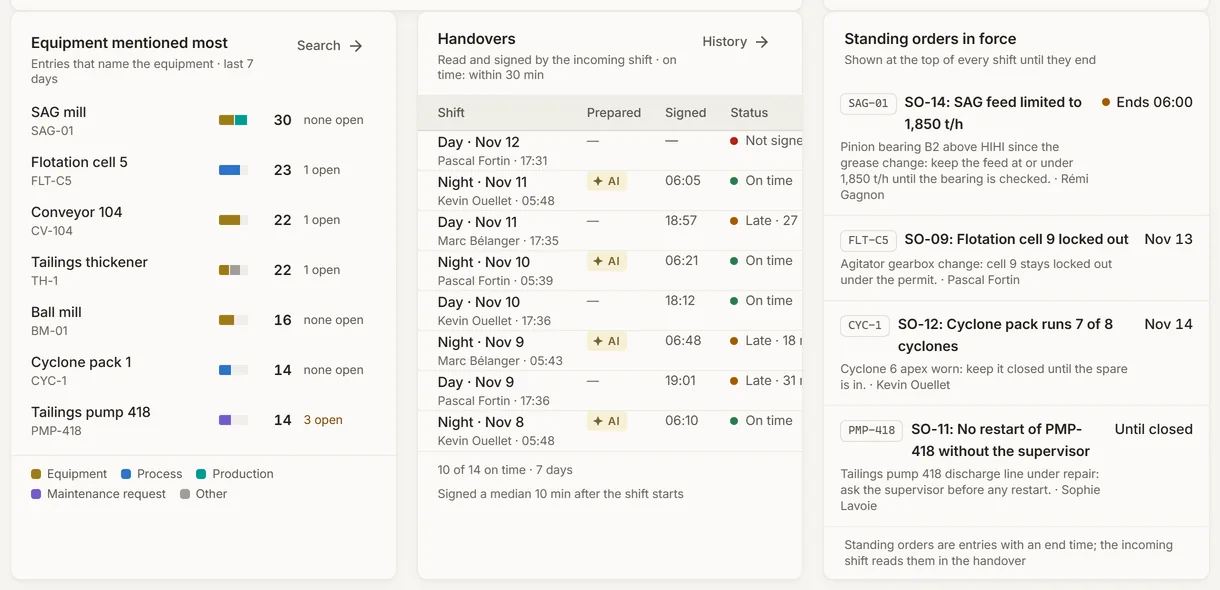
The handovers of a simulated control room with their signatures, the standing orders in force and the equipment mentioned most
Demo section, simulated data.
03 · Handovers

Each handover, who prepared it and when it was signed.

The handovers of the last shifts, read and signed by the incoming shift, on time or late against your site’s rule, beside the standing orders in force and the equipment mentioned most.

  • A handover drafted with the AI is marked.
  • Standing orders stay at the top of every shift until they end.
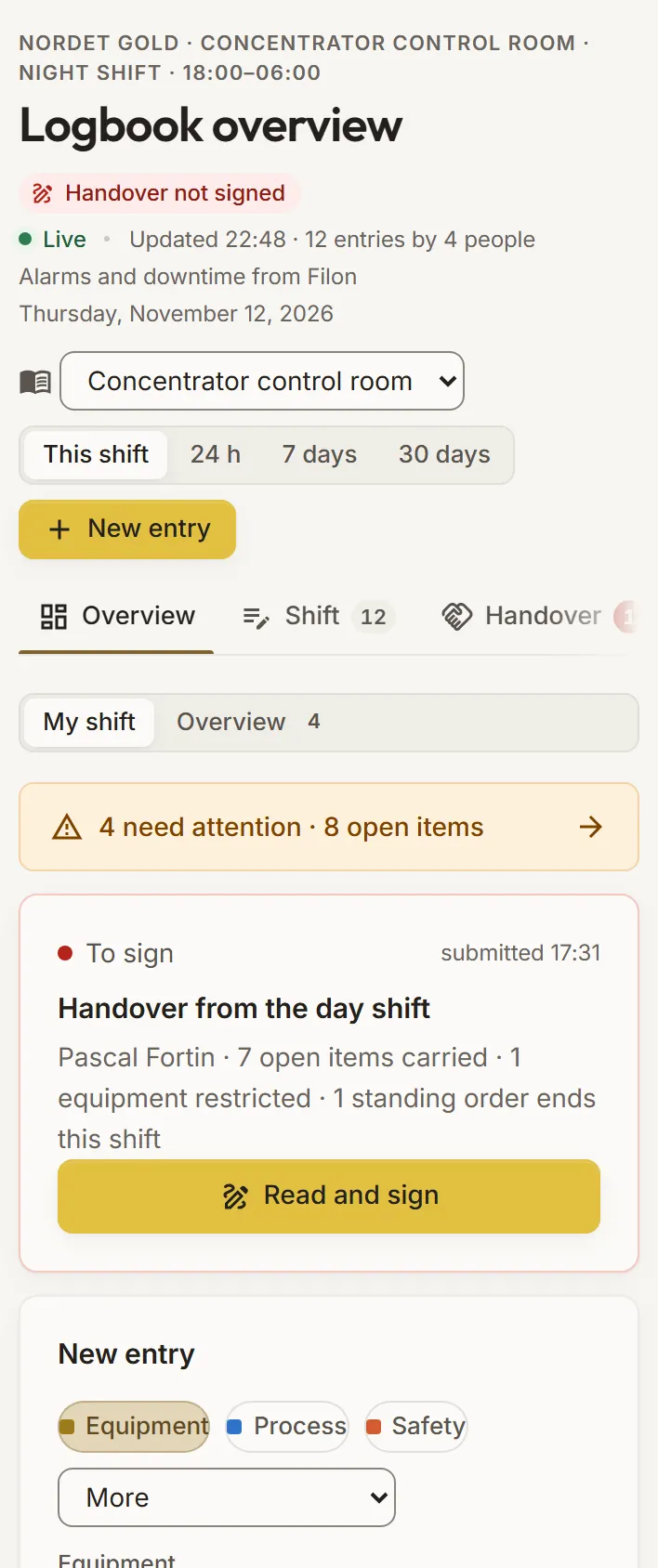
My shift in the logbook of a simulated control room, on a phone
Demo section, simulated data.
04 · On a phone

Read and sign the handover from a phone.

My shift opens first: what needs attention, the handover to read and sign, and a quick new entry with its category, its equipment and a photo.

  • The whole overview one tap away.
What it does

Everything it does.

  • The shift page

    The shift’s entries, its open items and standing orders, with the alarms raised, the equipment down and production against plan read from Filon.

  • Structured entries

    Ten categories, three levels of importance, equipment from your Filon list, PI tags, the time of the event apart from the time written, a reference to an alarm, a stop, an incident, a work order, a permit or a change, and up to three photos.

  • Open items and standing orders

    Open entries carried from shift to shift until they are closed with a note; standing orders shown at the top of every shift until they end.

  • The shift handover

    Summary, safety and environment, equipment status, production against plan and the open items; submitted by the outgoing shift, signed by the incoming one.

  • AI draft of the handover

    Drafted from the shift’s entries, open items, standing orders, alarms, downtime and production; a person reads it, edits it and submits it.

  • Search and history

    Search by text, category, equipment or open items, by period, and the history of every handover and its signatures.

Standards and integrations

Built on the standards and systems you already use.

Works with

  • FilonSites, shifts, equipment, the downtime of each shift and production against plan.
  • Alarm ManagementThe alarms raised during the shift and the most frequent ones, from your alarm journal.
  • PhonesMy shift: read and sign the handover, write an entry, in the browser.
Who uses it

Made for the people who run the site.

  • Control room operatorsWrite what happened in a few fields, and find the open items of the shift before them.
  • Shift supervisorsPrepare the handover from the AI’s draft, and know the incoming shift has signed it.
  • Operations superintendentsKeep an eye on open items, safety entries and handovers on time, area by area.
  • Maintenance plannersSee the equipment mentioned most and the maintenance requests written in the log.
Questions

What clients ask us.

Can an entry be deleted?

No. Its author can correct it for 12 hours, and an administrator at any time; every correction keeps the earlier text, with who and when.

Does the AI write the handover?

It drafts it from the shift’s entries, alarms, downtime and production. A person reads it, edits it and submits it; nothing is saved before.

Where do the alarms and the downtime come from?

From your Filon: the alarm journal of Alarm Management and the equipment states of your site. Without them, the logbook works on its entries alone.

Can we try it?

Yes. The Demo section has 14 days of logbooks on each simulated mine, kept current. What you write there is checked, not kept.

Your data

Your data in this app.

What it reads, what it writes and who sees it. The whole picture: Security and trust.

  • Nothing deleted

    Every correction keeps the earlier text, with who changed it and when.

  • Encrypted with your key

    The text of entries, handovers and signatures, and the names, are encrypted with your company’s own key.

  • In your own Filon

    The logbooks are kept in your company’s own database, never shared with another company.

The OneStop way

Every app follows the same principles.

What is true of this app is true of every app of TTech OneStop: your data, your people and your language come first.

  • Your data stays yours

    The apps read your data through your own AVEVA CONNECT and write back only their own results, in their own streams. Your existing data is never changed.

  • Nothing to install at the site

    OneStop runs in the browser. Your administrator sets up one connection to your AVEVA CONNECT, once, and every app uses it.

  • Your Microsoft sign-in

    Your people sign in with their Microsoft work account. Your own admins decide who uses which app.

  • Explained, never a black box

    Every score, alert and AI answer shows its reason and where its numbers come from, in plain words.

  • English and French

    Every screen, every message and every report, in the language each person chooses.

  • By the piece

    Subscribe to the apps you need and add others later. Try each one first in the demo, on ten simulated mines.

See it on your own data.

Book a demo on our simulated mines, or tell us how you want to use it on yours.