TTech OneStop · Safety and environment

Permit To Work

Every permit checked, gas tested and signed by three different people, and every isolation point verified by a second person.

The problem it solves

Paper permits cannot see each other.

A hot work permit is signed beside a confined space entry, and nobody notices until someone walks the area.

Isolations are checked on paper, gas tests come due unseen, and a permit past its end still holds its locks.

  • Demo on ten simulated mines
  • English and French
  • Hosted in Canada
  • Your Microsoft sign-in
The permits in force on the plan of a simulated mine, with what needs attention now
Demo section, simulated data.
  • Three signaturesArea authority, issuer and performer: three different people.
  • Gas testsO2, LEL, H2S and CO against their limits; a failed test suspends the permit at once.
  • Lockout/tagoutEach isolation point isolated by one person and verified by another.
  • ConflictsHot work beside a confined space, or two permits on one equipment, shown before approval.
What changes

What changes for your team.

  • Conflicts seen in time

    BeforeTwo permits on the same equipment, found in the field.

    With OneStopThe conflicts shown before approval, and the area authority confirms they were looked at.

  • Isolations you can trust

    BeforeA lock list on paper, checked by the person who placed the locks.

    With OneStopEach point verified by a second person, and no isolation removed while a live permit or a personal lock holds it.

  • The site at a glance

    BeforePermit boards rewritten by hand each shift.

    With OneStopThe permits in force on the site plan, read again every minute, and a wall view for the control room.

How it works

From your data to a decision, in a few steps.

  1. Request

    The requester gives the type, the area, the equipment tag, the validity and the work; the AI can draft the hazards and precautions.

  2. Check and test

    The type’s checklist is answered, the gas is tested and the isolations are placed and verified.

  3. Approve, issue, accept

    The area authority approves, the issuer issues and the performer accepts: three different people.

  4. Work and hand back

    The crew signs on by name; once everyone has signed off, the performer hands the permit back and the area authority closes it.

Inside the app

The screens your teams use.

Each screen below is from the Demo section of OneStop, on a simulated mine. Ask us for a visit to try them yourself.

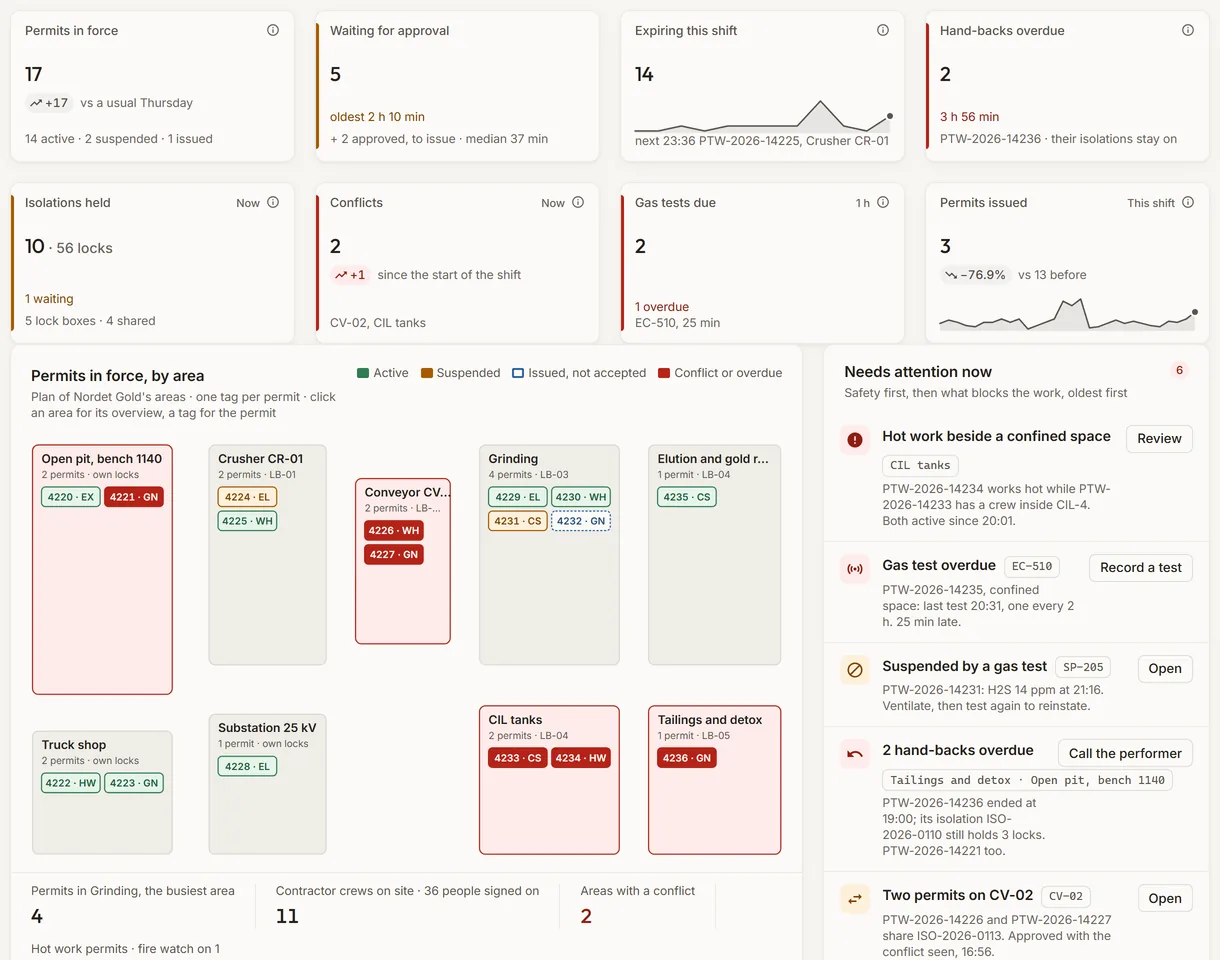
The permits in force on the plan of a simulated mine, with what needs attention now
Demo section, simulated data.
01 · Permits in force

Every permit in force, on the site plan.

One tag per permit on the plan of the site, coloured by its state, beside what needs attention now: hot work beside a confined space, a gas test overdue, a hand-back overdue, a request waiting for approval.

  • Eight tiles above: in force, waiting for approval, expiring this shift, hand-backs overdue, isolations held, conflicts, gas tests due, permits issued.
  • Read again every minute.
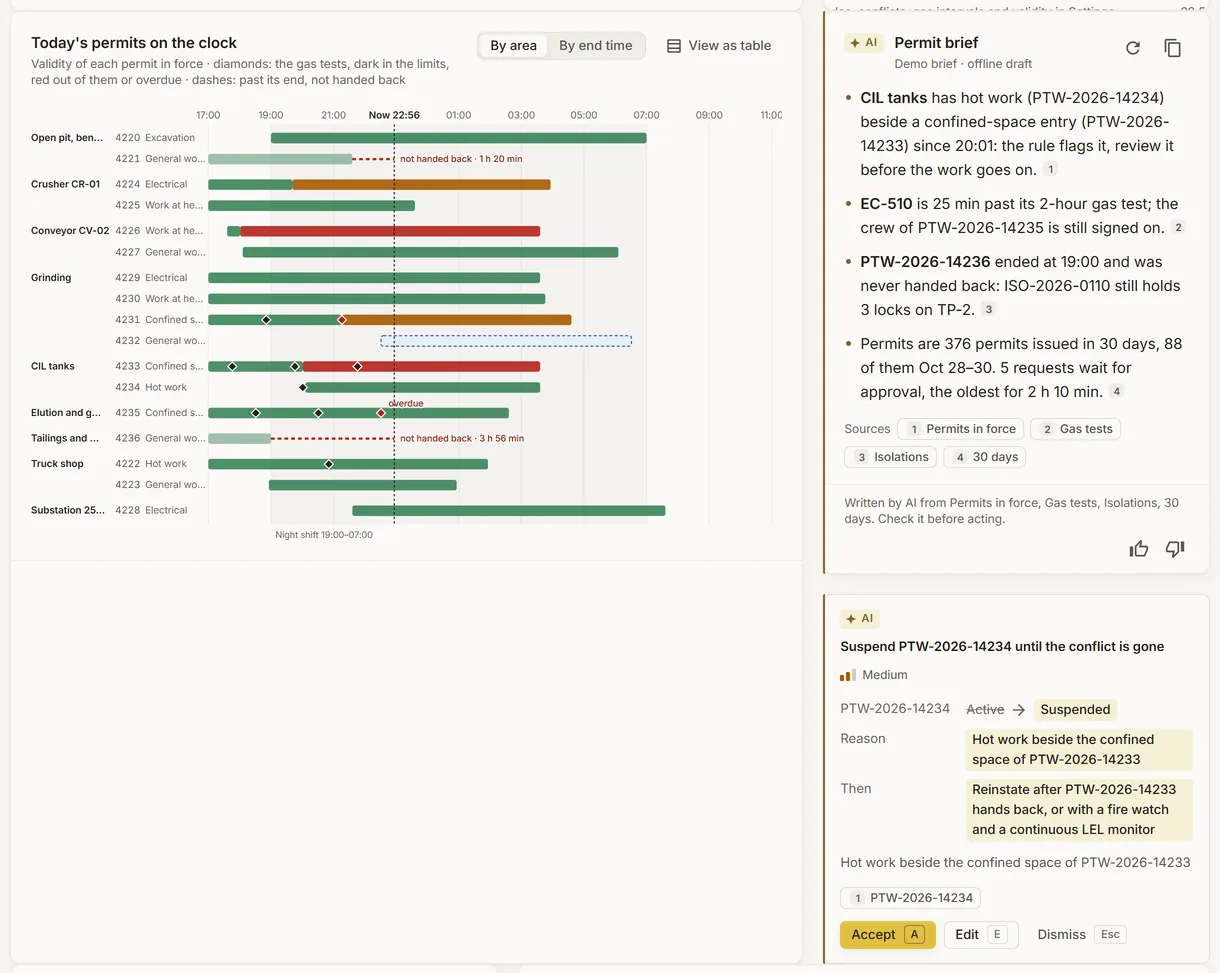
Today’s permits of a simulated mine on the clock, with their gas tests
Demo section, simulated data.
02 · The shift

Today’s permits, hour by hour.

Each permit in force as a bar across the shift, its gas tests as diamonds, red when out of the limits or overdue, and a permit past its end and not handed back marked with how long.

  • The permit brief beside it: four lines and one suggestion, which a person accepts or dismisses.
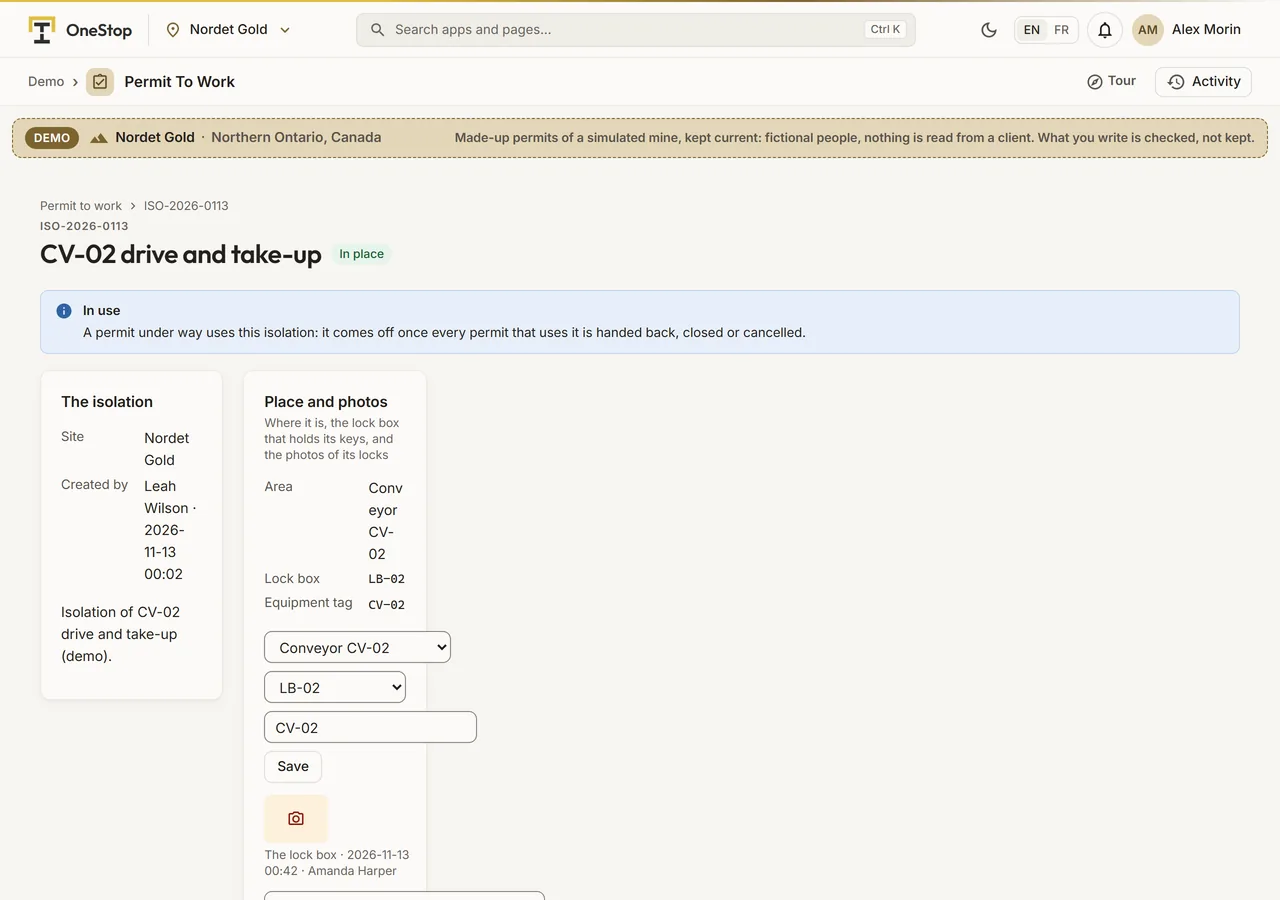
An isolation certificate of a simulated mine with its lockout points and the permits that use it
Demo section, simulated data.
03 · Lockout/tagout

An isolation, its points and the permits that share it.

Each lockout point with its energy, its device and its lock number, isolated by one person and verified by another with the try test, and the permits that use the isolation.

  • An isolation comes off only when no live permit uses it and every personal lock is off.
  • Its lock box and the photos of its locks.
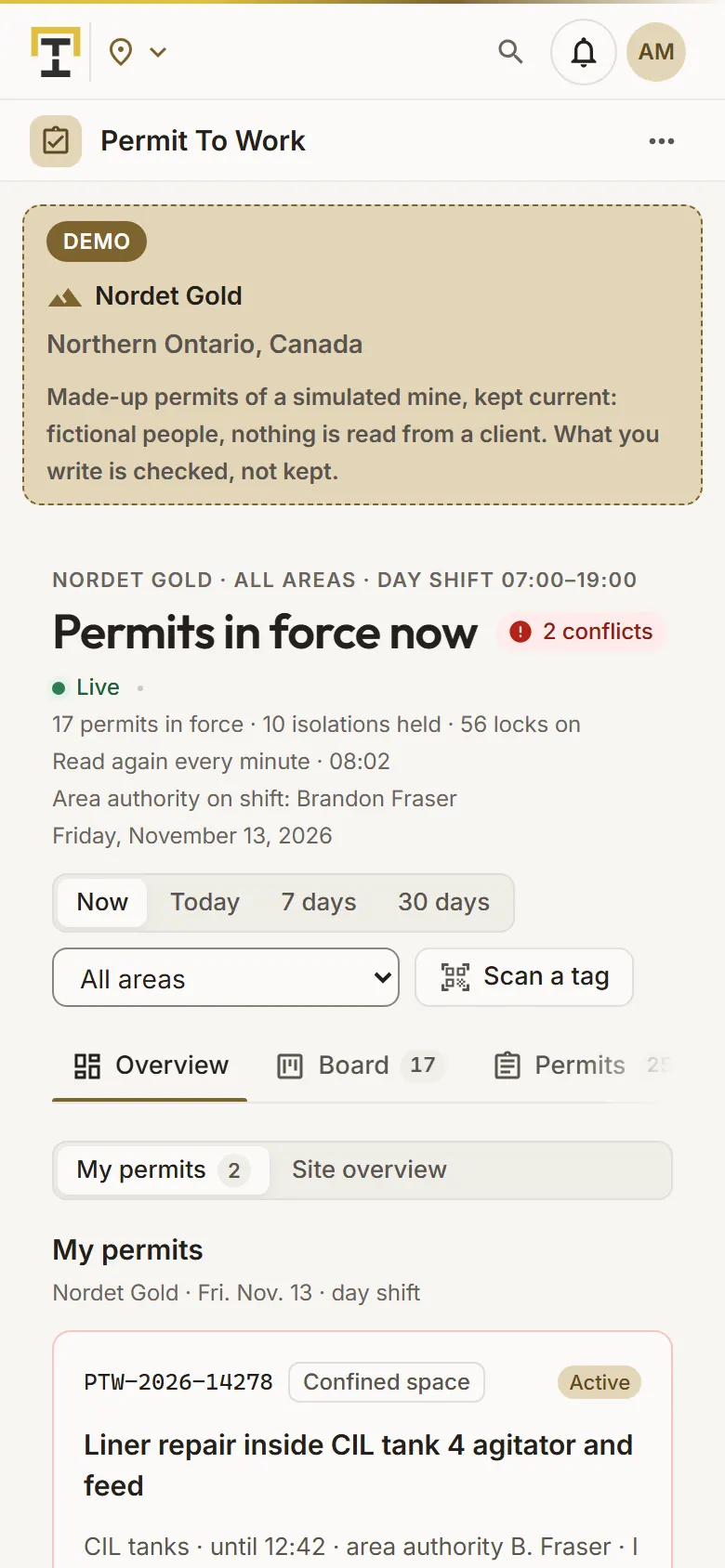
My permits of a simulated mine on a phone
Demo section, simulated data.
04 · In the field

Sign on and lock on, from a phone.

On a phone the app opens on My permits: sign on by name, put my personal lock on the lock box with its photo, follow the isolation checklist, then sign off for a break or when done.

  • Scan an equipment’s QR label to see its permits and isolations.
  • Contractors sign on by name, without an account.
What it does

Everything it does.

  • Six permit types

    Hot work, confined space, work at height, electrical, excavation and general work, each with its checklist; a permit is issued only when every item is answered and none is No.

  • Approvals by role

    Requested, approved by the area authority, issued, accepted by the performer, suspended or reinstated, handed back and closed; the server refuses any other step.

  • Gas tests

    O2, LEL, H2S and CO against their limits, every 2 hours for a confined space and every 4 hours for hot work; a test out of the limits blocks the issue and suspends a live permit.

  • Lockout/tagout

    Isolation certificates with their points, energies, devices and locks, verified by a second person, shared by several permits, on lock boxes with the crews’ personal locks.

  • Conflicts

    The same equipment, hot work in the area of a confined space or of a failed gas test: flagged on the board, and confirmed by the area authority at approval.

  • Boards and phones

    The overview on the site plan, a wall view for the control room, QR labels for the equipment tags, and My permits on a phone.

Standards and integrations

Built on the standards and systems you already use.

Standards

  • OSHA 1910.146 and CSA Z1006Confined spaces: the gas test limits of the app are modelled on them.
Who uses it

Made for the people who run the site.

  • Area authoritiesApprove the permits of their area, with the conflicts in front of them.
  • Issuers and performersIssue and accept the permits, sign the crew on and hand the permits back.
  • Maintenance plannersRequest the permits of the work, linked to its change or its shutdown package.
  • Control room operatorsSee every permit in force on the wall view, read again every minute.
Questions

What clients ask us.

Can one person sign two roles?

No. The area authority, the issuer and the performer are three different people, and the requester is never the area authority.

What happens when a gas test fails?

A test out of the limits blocks the issue, the acceptance and the reinstatement, and suspends a live permit at once.

How long is a permit valid?

Twelve hours at most, extended once by the area authority, up to 24 hours from its start. A permit past its end is flagged and can only be handed back.

Can we try it?

Yes. The Demo section has the permits of today and of the 30 days before on ten simulated mines, with fictional people and contractors.

Your data

Your data in this app.

What it reads, what it writes and who sees it. The whole picture: Security and trust.

  • Signed by the right people

    The server refuses a step from anyone the permit’s rules do not allow, and keeps the history of every step.

  • Encrypted with your key

    The work, hazards, crews and lock photos are encrypted with your company’s own key; photos are stored without their location or phone details.

  • Our staff read only

    Our staff see your permits only with your access code, and never sign or change them.

The OneStop way

Every app follows the same principles.

What is true of this app is true of every app of TTech OneStop: your data, your people and your language come first.

  • Your data stays yours

    The apps read your data through your own AVEVA CONNECT and write back only their own results, in their own streams. Your existing data is never changed.

  • Nothing to install at the site

    OneStop runs in the browser. Your administrator sets up one connection to your AVEVA CONNECT, once, and every app uses it.

  • Your Microsoft sign-in

    Your people sign in with their Microsoft work account. Your own admins decide who uses which app.

  • Explained, never a black box

    Every score, alert and AI answer shows its reason and where its numbers come from, in plain words.

  • English and French

    Every screen, every message and every report, in the language each person chooses.

  • By the piece

    Subscribe to the apps you need and add others later. Try each one first in the demo, on ten simulated mines.

See it on your own data.

Book a demo on our simulated mines, or tell us how you want to use it on yours.