TTech OneStop · Safety and environment

Shutdown Planning

Each shutdown planned to the hour and followed as it runs, so a slip on the critical path or a cost overrun shows while there is still time to act.

The problem it solves

A shutdown slips one package at a time.

The plan is in one tool, the permits in another and the costs in a spreadsheet, so a late crew or a part not on site is seen too late.

Work found during the shutdown is added without a decision, and nobody can say what it does to the finish date or the budget.

  • Demo on ten simulated mines
  • English and French
  • Hosted in Canada
  • Your Microsoft sign-in
The overview of a shutdown under way at a simulated gold mine: progress, the forecast finish, the critical path and what needs attention now
Demo section, simulated data.
  • Scope freezeWork added after the freeze waits for the shutdown manager’s decision.
  • Critical pathComputed from the tasks and their links, with the float of each one.
  • Hour by hourEarned against planned every 4 hours, with the people on site each shift.
  • PermitsEach package’s permits read from Permit To Work, and the ones not ready.
What changes

What changes for your team.

  • Slips seen while there is time

    BeforeA late package found at the morning meeting, a day after it slipped.

    With OneStopThe packages behind or using up their float, flagged as the progress comes in, with the forecast finish.

  • Scope growth decided, not discovered

    BeforeExtra work added during the shutdown, and nobody deciding.

    With OneStopLate work kept out of the plan until the shutdown manager approves it, and the growth since the freeze against your limit.

  • One daily report, written once

    BeforeSupervisors’ notes, timesheets and spreadsheets merged by hand every night.

    With OneStopThe AI drafts the report from the day’s updates, manpower and costs; a person checks it and the manager approves it.

How it works

From your data to a decision, in a few steps.

  1. Scope the work

    Work packages with their equipment, estimate, contractor and the permits they need, frozen at the date you choose.

  2. Schedule it

    Tasks with their durations and finish-to-start links; OneStop computes the critical path and the float.

  3. Get ready

    The readiness gates turn green as the scope is estimated, the packages planned, the parts on site, the permits prepared and the contractors confirmed.

  4. Run it hour by hour

    Crews update their steps from a phone; the progress, the cost, the slips and the daily report follow.

Inside the app

The screens your teams use.

Each screen below is from the Demo section of OneStop, on a simulated mine. Ask us for a visit to try them yourself.

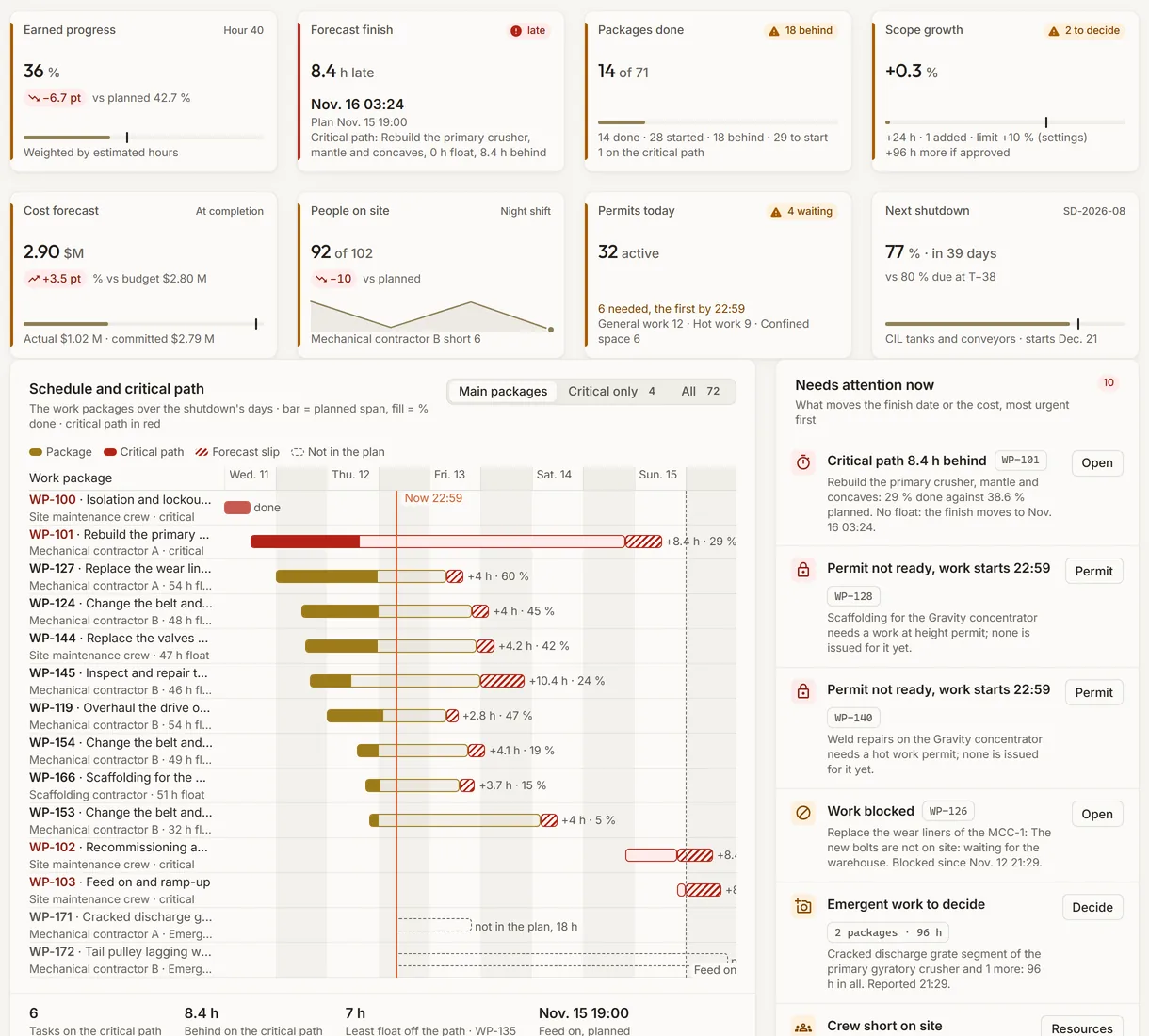
The overview of a shutdown under way at the simulated Nordet Gold mine: its eight tiles, the schedule with its critical path and what needs attention now
Demo section, simulated data.
01 · Overview

The shutdown at a glance, hour by hour.

Earned against planned, the forecast finish, the packages done, the scope growth since the freeze, the cost forecast, the people on site this shift, today’s permits and the next shutdown’s readiness. Under them, the schedule with its critical path in red, beside what needs attention now.

  • The forecast slip drawn after each late bar.
  • Most urgent first: a late critical package, work to decide, a permit not ready, a crew short.
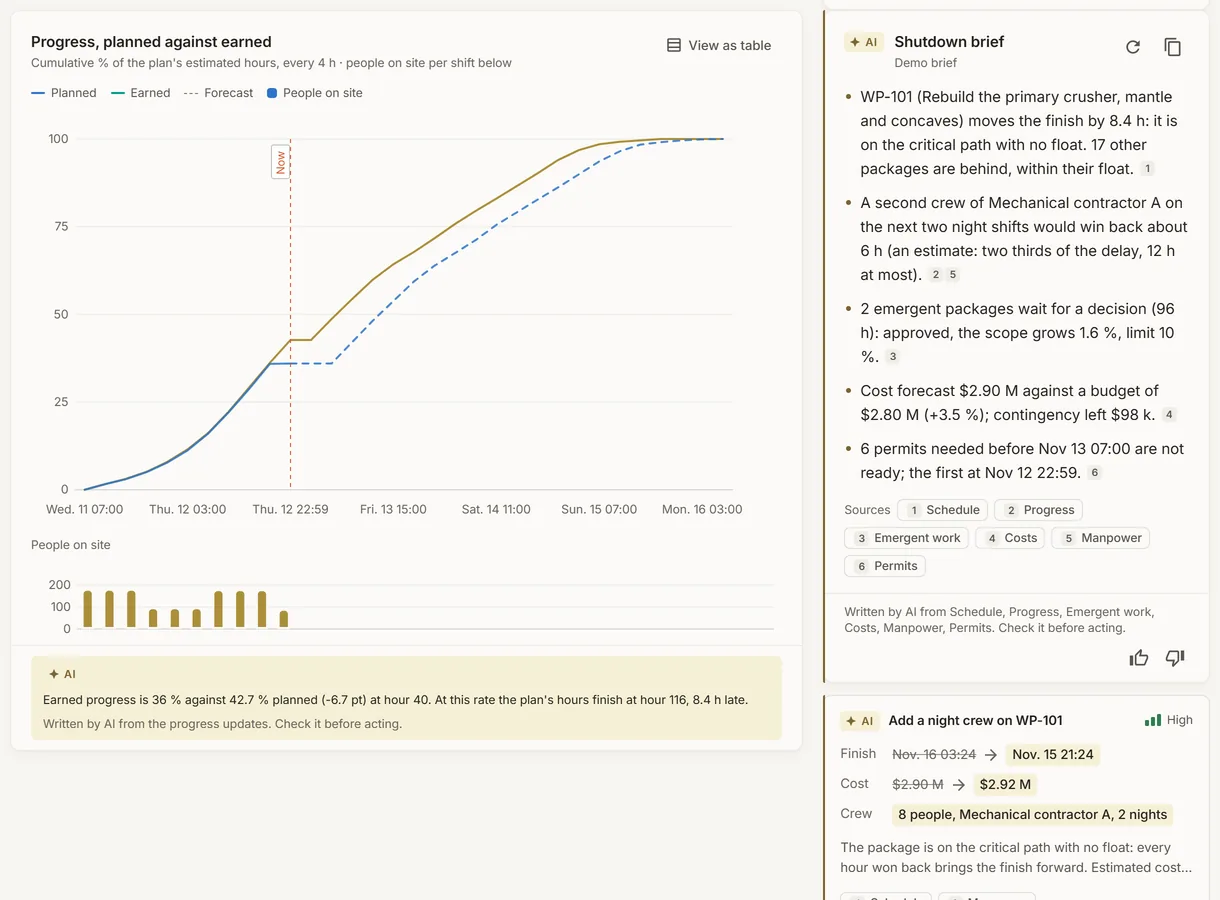
The progress of a simulated shutdown, planned against earned every 4 hours, beside the shutdown brief
Demo section, simulated data.
02 · Progress

Planned against earned, every 4 hours.

The share of the plan’s estimated hours earned so far against the plan, the forecast from now, and the people on site each shift. Beside it, the shutdown brief: what moves the finish, the work to decide, the cost and the permits.

  • One suggestion, such as a night crew on the late critical package, to accept, edit or dismiss.
  • Each line of the brief names its sources: the schedule, the progress, the emergent work, the costs, the manpower or the permits.
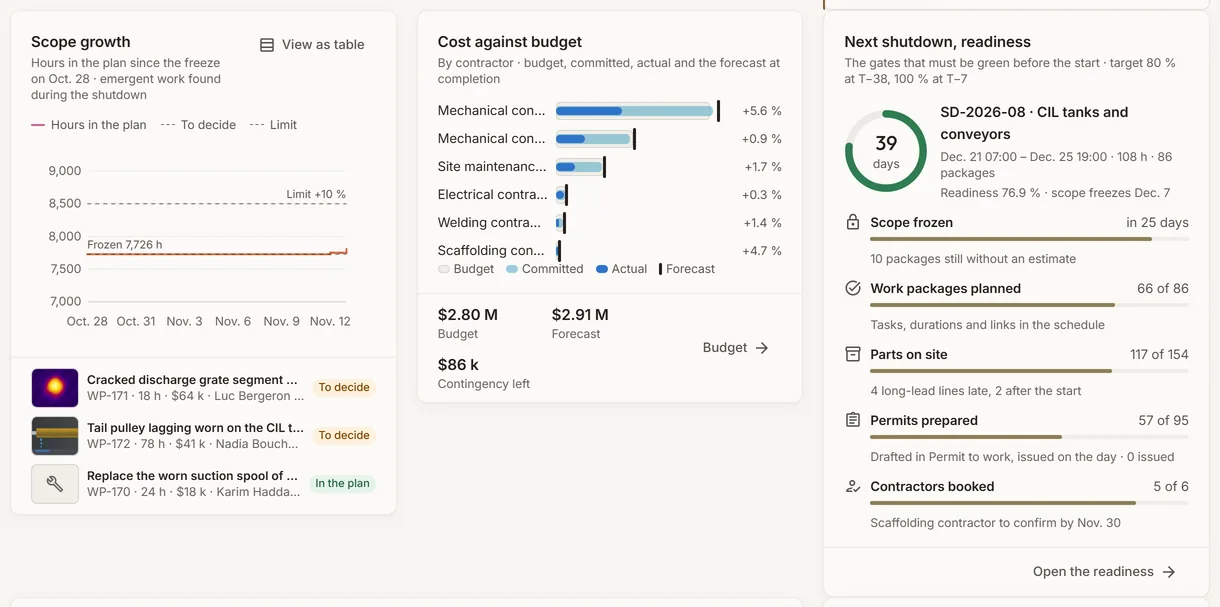
The scope growth, the cost against budget by contractor and the readiness of the next shutdown, at a simulated mine
Demo section, simulated data.
03 · Scope, cost and readiness

Late work, cost and the next shutdown, side by side.

The hours in the plan since the freeze, with the emergent work found during the shutdown and its photo; the cost of each contractor against its budget and the forecast at completion; the readiness gates of the next shutdown.

  • The contingency left once the overrun is taken out.
  • Readiness targets set by your company, for a number of days before the start.
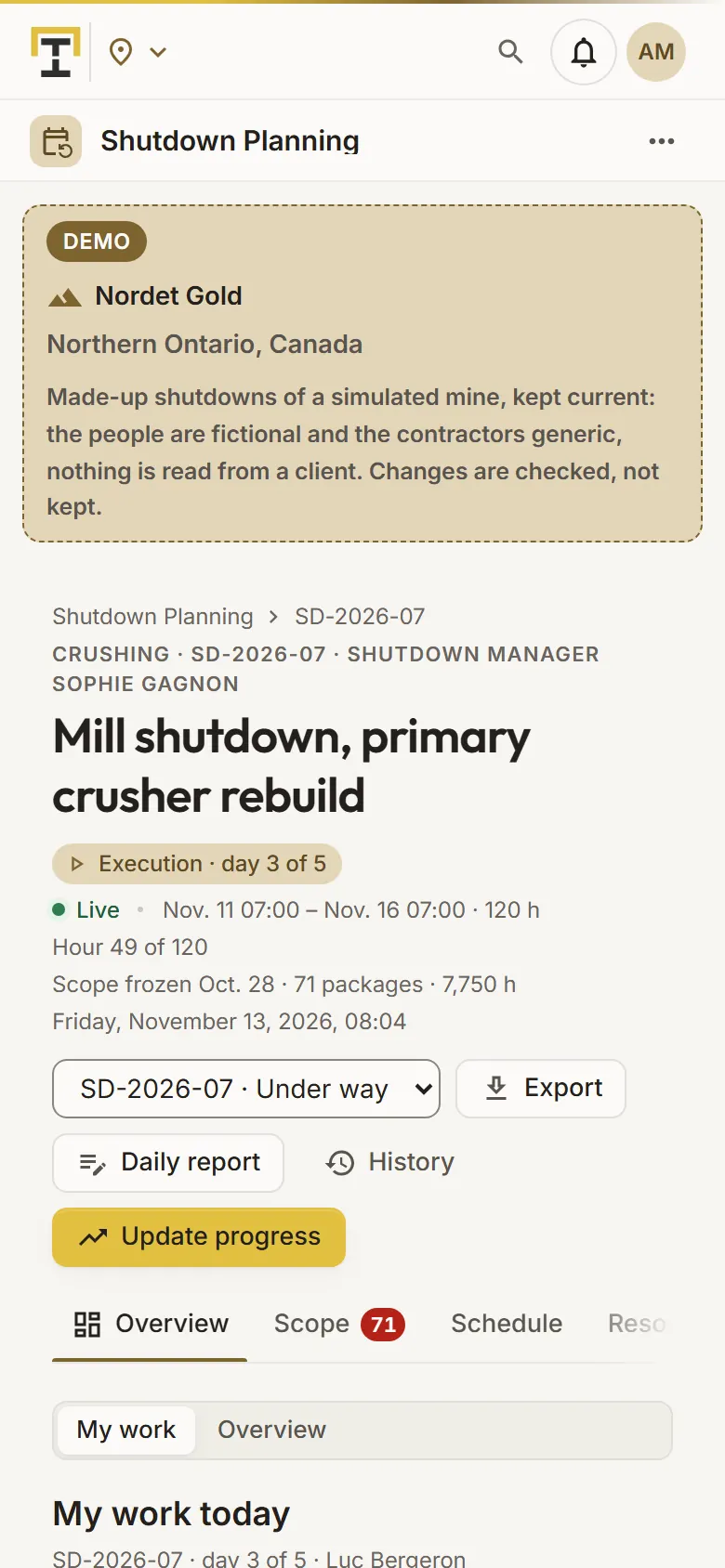
My work today in a simulated shutdown, on a phone
Demo section, simulated data.
04 · In the field

Each person opens on their own work.

On a phone the app opens on My work today: the package under way with its steps, its % done and its permit, then the other packages of the person or their crew.

  • Report emergent work with a photo taken on the phone; it waits for the shutdown manager.
  • Block a package with its reason, and unblock it when the work can go on.
What it does

Everything it does.

  • Work packages and scope freeze

    Each package with its area, equipment, discipline, estimated hours and cost, contractor, priority and the permits it needs. After the freeze, new work waits for the shutdown manager.

  • Schedule and critical path

    Tasks with durations and finish-to-start links, the early and late dates and the float of each, the critical path and a Gantt view. A loop in the links is refused.

  • Contractors, crews and manpower

    Each contractor’s booking, the crews and their members, and the people planned and on site per day and shift, with the peak.

  • Progress and slips

    The S-curve of planned against earned, each step started and finished, and the packages likely to slip, worded by the AI for the morning meeting.

  • Budget and cost

    Estimate, committed, actual and the forecast at completion, per package and per contractor, with the contingency left.

  • Readiness, risks and daily reports

    The readiness gates, the parts and their arrival dates, a risk register with its heat map, and one daily report a day, drafted by the AI and approved by the manager.

Who uses it

Made for the people who run the site.

  • Shutdown managersFreeze the scope, decide the late work and approve the daily reports.
  • Planners and schedulersBuild the packages, tasks and links, and keep the critical path in view.
  • Supervisors and crewsSee their own work on a phone, mark their steps and report what they find.
  • Maintenance and plant managersFollow the progress, cost and readiness of every shutdown on one page.
Questions

What clients ask us.

What happens to work found after the scope freeze?

It is added as late scope and waits outside the plan until the shutdown manager approves or rejects it. The overview shows the scope growth since the freeze against your company’s limit.

How is the critical path found?

From each task’s duration and its finish-to-start links: OneStop computes the earliest and latest dates of every task and its float. A task with no float is on the critical path.

Does the AI change the plan?

No. It drafts the daily report and words the packages likely to slip from the app’s own figures. A person accepts, edits or dismisses, and the shutdown manager approves the report.

Can we try it?

Yes. The Demo section has a shutdown under way and the next one being planned on each of ten simulated mines, with fictional people and generic contractors.

Your data

Your data in this app.

What it reads, what it writes and who sees it. The whole picture: Security and trust.

  • Encrypted with your key

    The texts of a shutdown, its packages, notes, reports and photos, are encrypted with your company’s own key; photos are stored without their location.

  • Permits read, never changed

    Shutdown Planning reads a linked permit’s number, type, status and validity, never its content, and never changes it.

  • Nothing erased

    Packages, tasks and links are cancelled or taken off the plan, never deleted, and each shutdown keeps its history.

The OneStop way

Every app follows the same principles.

What is true of this app is true of every app of TTech OneStop: your data, your people and your language come first.

  • Your data stays yours

    The apps read your data through your own AVEVA CONNECT and write back only their own results, in their own streams. Your existing data is never changed.

  • Nothing to install at the site

    OneStop runs in the browser. Your administrator sets up one connection to your AVEVA CONNECT, once, and every app uses it.

  • Your Microsoft sign-in

    Your people sign in with their Microsoft work account. Your own admins decide who uses which app.

  • Explained, never a black box

    Every score, alert and AI answer shows its reason and where its numbers come from, in plain words.

  • English and French

    Every screen, every message and every report, in the language each person chooses.

  • By the piece

    Subscribe to the apps you need and add others later. Try each one first in the demo, on ten simulated mines.

See it on your own data.

Book a demo on our simulated mines, or tell us how you want to use it on yours.