TTech OneStop · Reliability

OT Assets

Know every PLC, HMI, server and switch of the site, which ones put the plant at risk, and why.

The problem it solves

You cannot protect what is not on the list.

The control system’s assets live in old spreadsheets: an HMI past its support, a PLC never backed up or a router added at night stays unknown.

When an advisory comes out, nobody can say quickly which assets it touches, or which one to fix first.

  • Demo on ten simulated mines
  • English and French
  • Hosted in Canada
  • Your Microsoft sign-in
The OT assets overview of a simulated concentrator: the risk tiles, the zones and conduits by Purdue level and what needs a look now
Demo section, simulated data.
  • Explained riskA score from 0 to 100 for each asset, every reason with its points.
  • Purdue zonesLevels 0 to 5 and the DMZ, with the conduits between the zones.
  • Scans comparedA device or a change a scan finds without a record goes to review.
  • Nothing installedNo sensor on your network: assets are entered, imported or proposed.
What changes

What changes for your team.

  • One register people trust

    BeforeA spreadsheet per area, out of date the day after.

    With OneStopEvery asset with its version, last patch, last good backup, zone and owner, and the history of each change.

  • The riskiest first

    BeforeLong lists of findings, in no order.

    With OneStopEach asset’s risk with its reasons, the high-risk ones on top, and the site’s risk over 12 weeks.

  • Changes caught

    BeforeA new device or a changed configuration found during an incident.

    With OneStopEach scan compared with the register: a change without a record waits for review.

How it works

From your data to a decision, in a few steps.

  1. Build the register

    Enter the assets, import them from a CSV, or add the servers Enhanced PI Monitoring already reads.

  2. Place them on the network

    Each asset in a zone and a Purdue level, with the conduits allowed between the zones.

  3. Record what matters

    Versions and end of support, patches, backups and the advisories that affect each asset.

  4. Compare and act

    Import a scan, review what changed, and fix the riskiest assets first.

Inside the app

The screens your teams use.

Each screen below is from the Demo section of OneStop, on a simulated mine. Ask us for a visit to try them yourself.

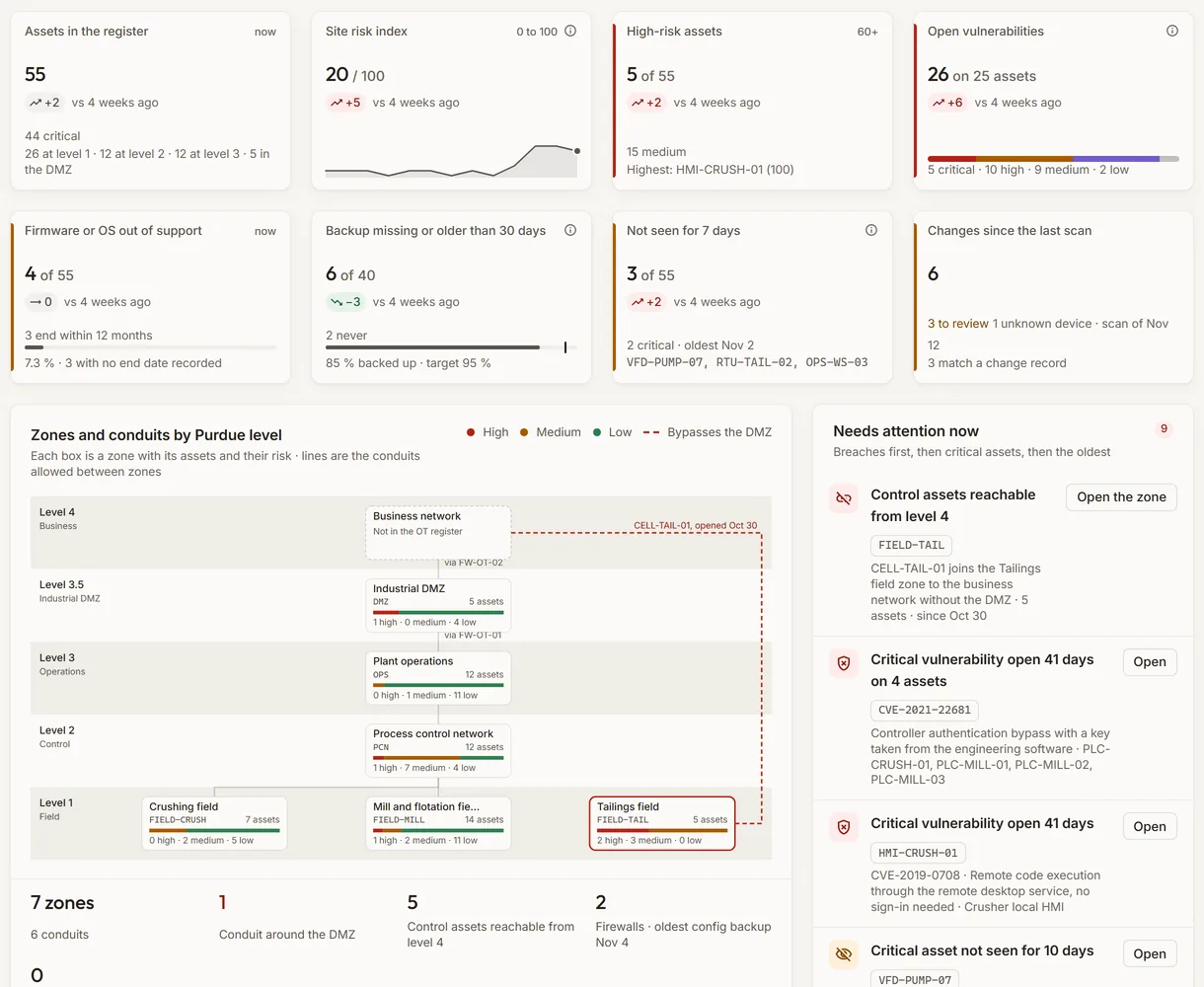
The OT assets overview of the simulated Nordet Gold concentrator: its eight tiles, the zones and conduits by Purdue level and what needs a look now
Demo section, simulated data.
01 · Overview

Where the risk is, on one page.

The assets, the site’s risk index over 12 weeks, the high-risk assets, the open vulnerabilities, what is out of support, the backups missing, the assets a scan no longer sees and what the last scan changed. Under them, each zone on its Purdue level, with its assets and their risk.

  • A conduit that reaches the business network without the DMZ is drawn in red.
  • What needs a look now: a zone breach, a critical vulnerability open over 30 days, a device not in the register.
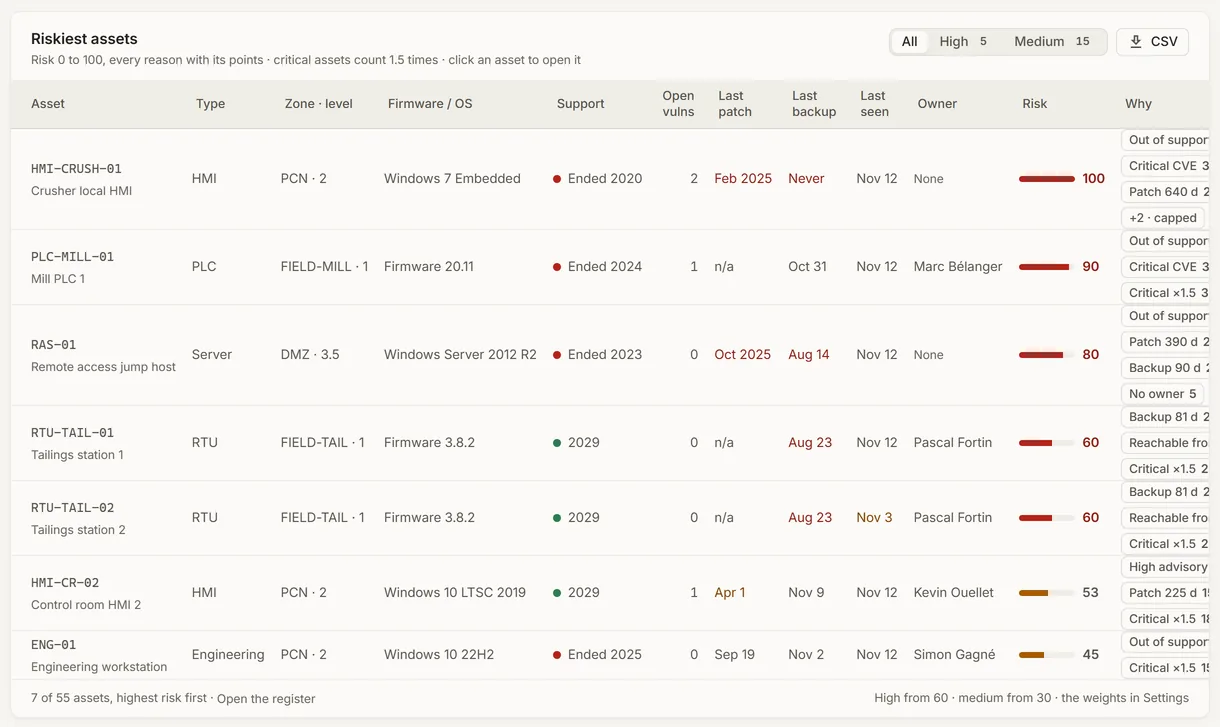
The riskiest assets of the simulated concentrator, each score with its reasons and their points
Demo section, simulated data.
02 · Explained risk

Each score, with its reasons and their points.

The riskiest assets first, each with its score from 0 to 100 and every reason behind it: out of support, an open vulnerability, a late patch, no recent backup, no owner, reachable from the business network without the DMZ.

  • A critical asset counts 1.5 times, shown as its own reason.
  • The weights are your site’s, in Settings.
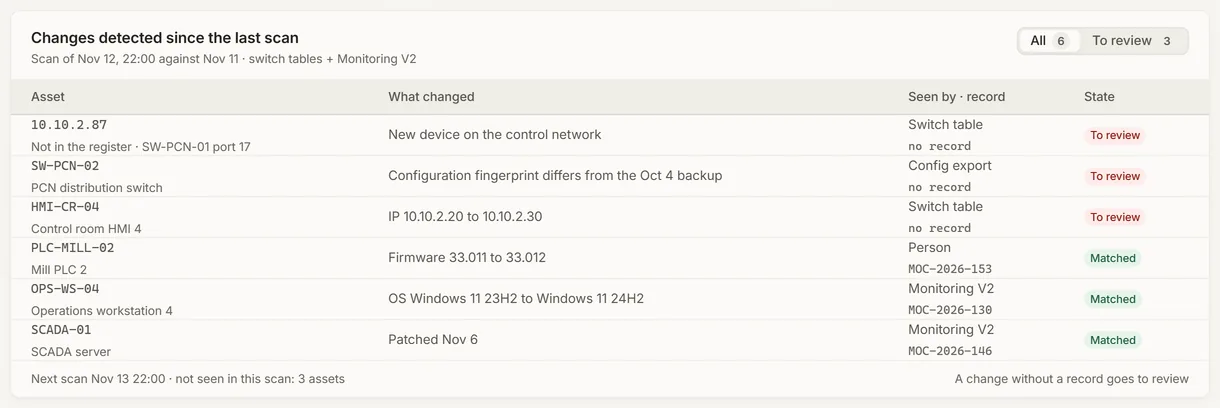
The changes the last scan of the simulated control system found, matched or to review
Demo section, simulated data.
03 · Scans

What the last scan found against the register.

A device not in the register, a configuration that differs from its last good backup, a new address, firmware, OS or patch: each with who saw it and its change record.

  • With a change record, the register takes the new value.
  • Without one, it waits for an administrator’s review.
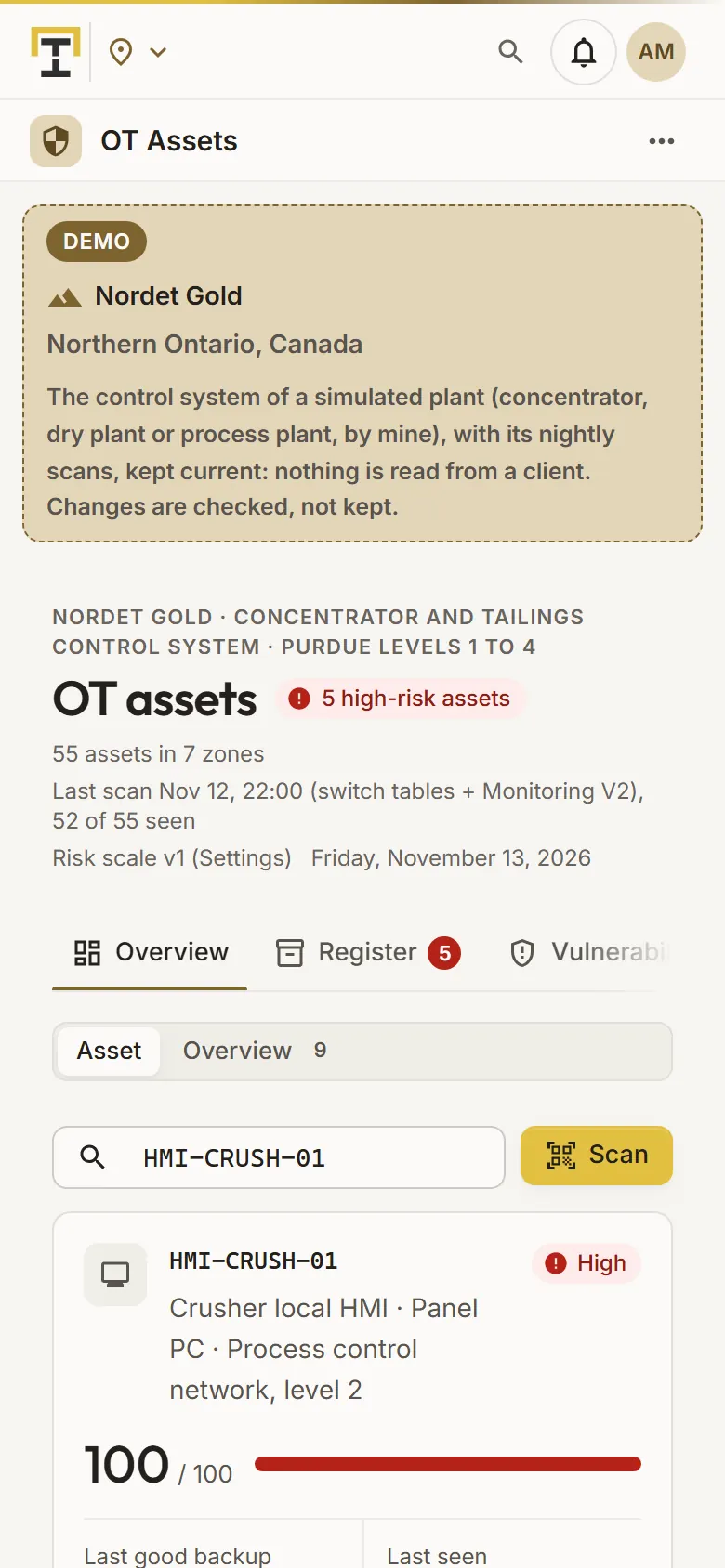
An HMI of the simulated concentrator found by its tag on a phone, with its risk and its reasons
Demo section, simulated data.
04 · On the floor

An asset by its tag, on a phone.

On a phone the app opens on the tag lookup: scan the asset’s QR label or type its tag to see its risk and why, its last good backup and when a scan last saw it.

  • Record a backup, or add a photo and a note, from the field.
What it does

Everything it does.

  • Asset register

    PLCs, RTUs, HMIs, SCADA and historian servers, workstations and network gear, with vendor, model, firmware or OS, end of support, address, location, owner and criticality; CSV import and export.

  • Zones and conduits

    Purdue levels 0 to 5 and the DMZ, the zones and the conduits allowed between them, with what each conduit goes through.

  • Vulnerabilities

    Each advisory, a CVE or a vendor’s reference, recorded on the assets it affects with its severity, its state and the version that fixes it.

  • Patches and backups

    The last patch and the last good backup of each asset and its method, and the ones overdue counted.

  • Explained risk

    A score from 0 to 100 for each asset from your site’s weights, every reason shown, and the site’s risk over 12 weeks.

  • Scans and changes

    Scans imported from your own tools and compared with the register; a change without a record goes to review, and every edit is kept.

Standards and integrations

Built on the standards and systems you already use.

Standards

  • Purdue modelLevels 0 to 5 and the DMZ at 3.5: each asset and zone on its level.
  • IEC 62443Security of industrial control systems: the zones and conduits the register is organized by.

Works with

  • Enhanced PI MonitoringThe servers of your PI Systems it already reads, proposed as assets.
  • Your network toolsTheir scans imported as CSV: switch tables, configuration exports or a list of the devices seen.
  • SpreadsheetsYour existing register imported from a CSV, checked before it is written.
Who uses it

Made for the people who run the site.

  • OT and control system engineersKeep the register, the zones and the backups up to date.
  • IT and OT security leadsSee the riskiest assets and the open vulnerabilities, and show progress.
  • Automation techniciansFind an asset by its tag in the field and record its backup.
  • Plant and IT managersFollow the site’s risk index and what is out of support, week after week.
Questions

What clients ask us.

Does it scan our network?

No. Nothing is installed on your control network. The register is entered, imported from a CSV or proposed from the servers Enhanced PI Monitoring already reads, and the scans of your own tools are imported as CSV.

Are vulnerabilities matched to our assets automatically?

No. Your team records each advisory, a CVE or a vendor’s reference, on the assets it affects, with its severity and the version that fixes it.

How is the risk computed?

Each reason adds its points: out of support, an open vulnerability, a late patch, no good backup in 30 days, no owner, a control asset reachable from the business network without the DMZ. A critical asset counts 1.5 times, up to 100.

Can we try it?

Yes. The Demo section has the control system of each simulated mine’s plant, with its zones, advisories and 12 weeks of nightly scans.

Your data

Your data in this app.

What it reads, what it writes and who sees it. The whole picture: Security and trust.

  • Nothing on your network

    No sensor and no agent: the register is entered or imported, and scans come in as files.

  • In your own Filon

    The register is kept in your company’s own Filon database; owners and notes are encrypted with your key.

  • Every change kept

    Each edit, import, backup and review is logged with who made it and when.

The OneStop way

Every app follows the same principles.

What is true of this app is true of every app of TTech OneStop: your data, your people and your language come first.

  • Your data stays yours

    The apps read your data through your own AVEVA CONNECT and write back only their own results, in their own streams. Your existing data is never changed.

  • Nothing to install at the site

    OneStop runs in the browser. Your administrator sets up one connection to your AVEVA CONNECT, once, and every app uses it.

  • Your Microsoft sign-in

    Your people sign in with their Microsoft work account. Your own admins decide who uses which app.

  • Explained, never a black box

    Every score, alert and AI answer shows its reason and where its numbers come from, in plain words.

  • English and French

    Every screen, every message and every report, in the language each person chooses.

  • By the piece

    Subscribe to the apps you need and add others later. Try each one first in the demo, on ten simulated mines.

See it on your own data.

Book a demo on our simulated mines, or tell us how you want to use it on yours.